Enhanced Per-Feature Labeling
Bulk auto-labeling is fast and covers all your features in one job. Enhanced labeling goes deeper — for features you most want to understand, it runs a structured two-pass analysis that mirrors how a human researcher would interpret the feature, then captures the reasoning in detail.
Use enhanced labeling when:
- A bulk label feels too vague (e.g., "semantic: general topic")
- A feature is theoretically interesting and deserves careful interpretation
- You want a full written explanation of why the feature fires, not just what it fires on
- You're preparing features for export to Neuronpedia
The Enhanced Label Button
In the Feature Detail Modal, click the Enhanced Label button next to Edit Details:
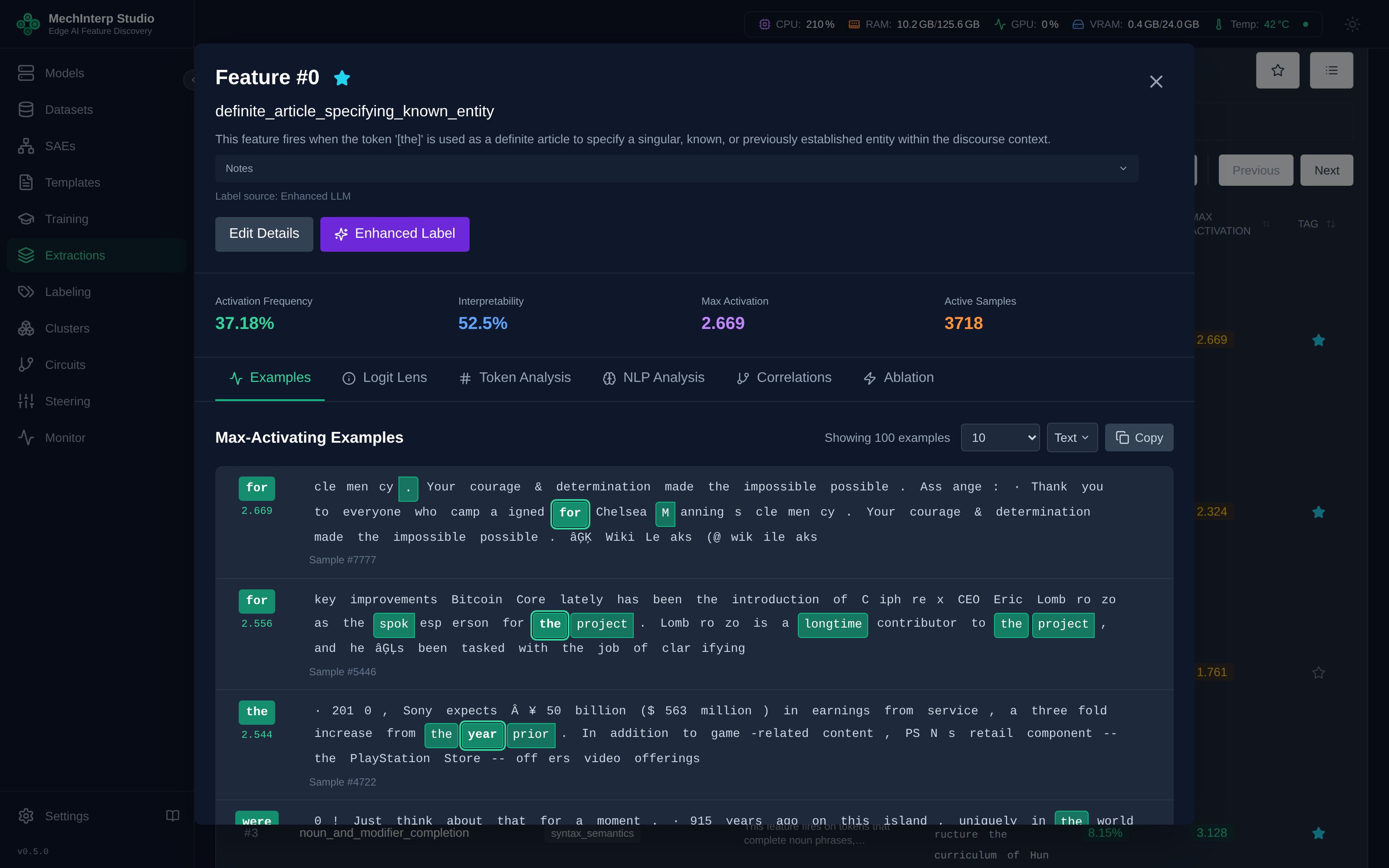
Click it to start enhanced labeling for that feature. The job is queued immediately and runs in the background.
Two-Pass Strategy
Enhanced labeling runs two LLM passes before producing a label:
Pass 1 — Per-Example Summarization (Parallel)
For each of your top activation examples, the LLM is asked:
"What is this token doing in THIS specific context? One sentence."
Up to 20 examples are processed in parallel (configurable in Settings → Labeling → Max Parallel Workers). Each produces a one-sentence observation.
Example observations:
Example 4 (act: 5.2):  "The word 'from' introduces the source or origin of a legal precedent."
Example 7 (act: 4.9):  "Here 'from' specifies the jurisdiction a case was appealed from."
Example 12 (act: 4.3): "'From' marks the provenance of an expert witness's credentials."
Pass 2 — Synthesis
All per-example observations are collected and fed back to the LLM with the token frequency distribution. The synthesis question is:
"What is the single unifying concept across all these examples?"
The LLM produces a structured JSON response with:
- Name: a snake_case slug (max 5 words)
- Category: broad type (semantic, syntactic, positional, discourse, entity, mixed)
- Description: one precise sentence grounding the pattern
- Notes: a reasoning paragraph + a markdown table of the per-example summaries
Progress Tracking
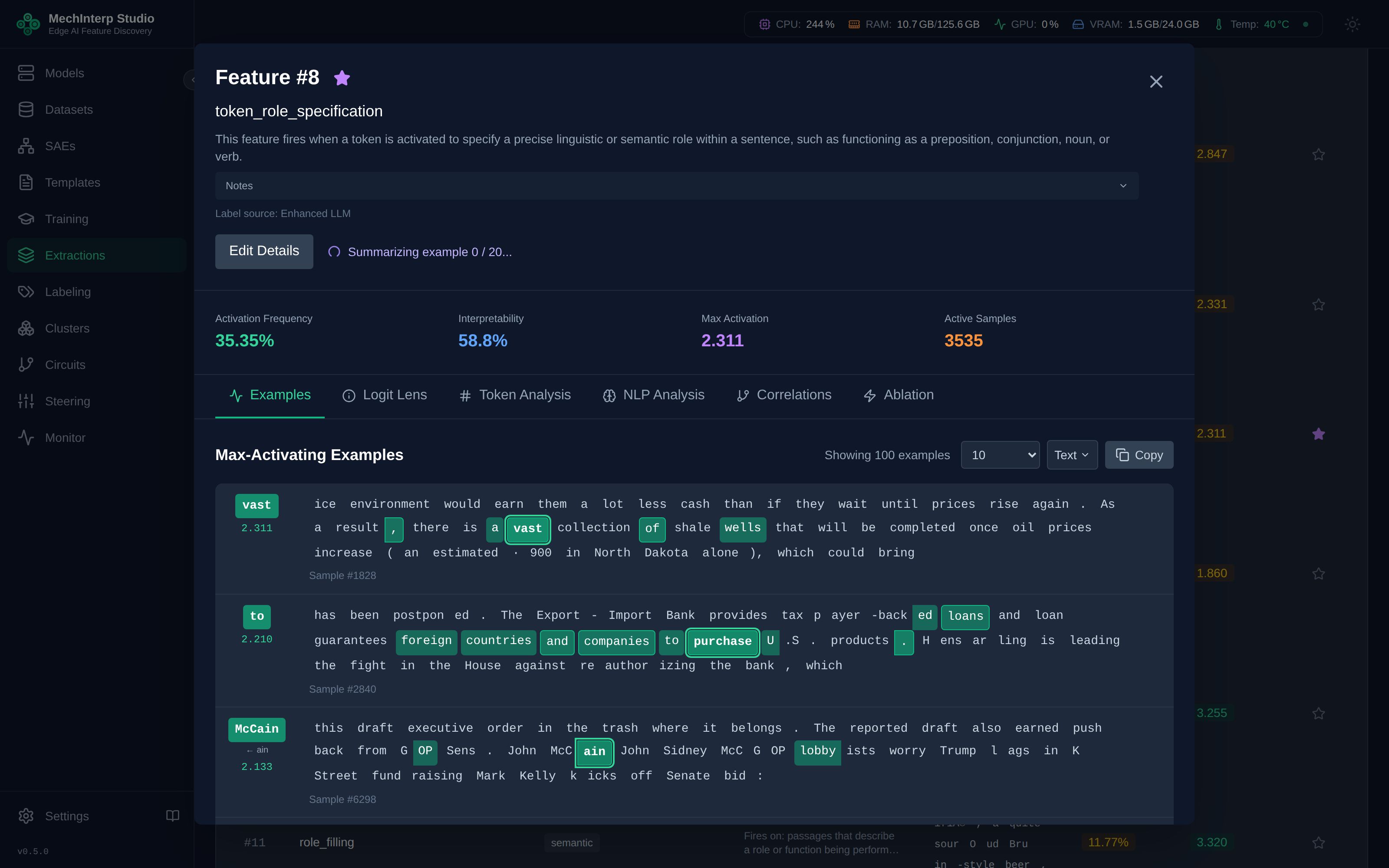
While enhanced labeling runs, the Feature Detail modal shows live progress:
- Queued: waiting for a Celery worker
- Pass 1:
Summarizing example N / 20…— updates in real-time - Pass 2:
Synthesizing label…— brief, usually 5–15 seconds
The feature row in the panel behind the modal updates simultaneously — you don't need to keep the modal open.
The Star Color System
The star on each feature card tracks the labeling lifecycle:
| Star | Meaning |
|---|---|
| ☆ (no star) | Unstarred |
| ⭐ Yellow | Manually starred by you |
| 🟣 Purple | Enhanced labeling is in-flight |
| 🔵 Aqua | Enhanced labeling completed — permanent |
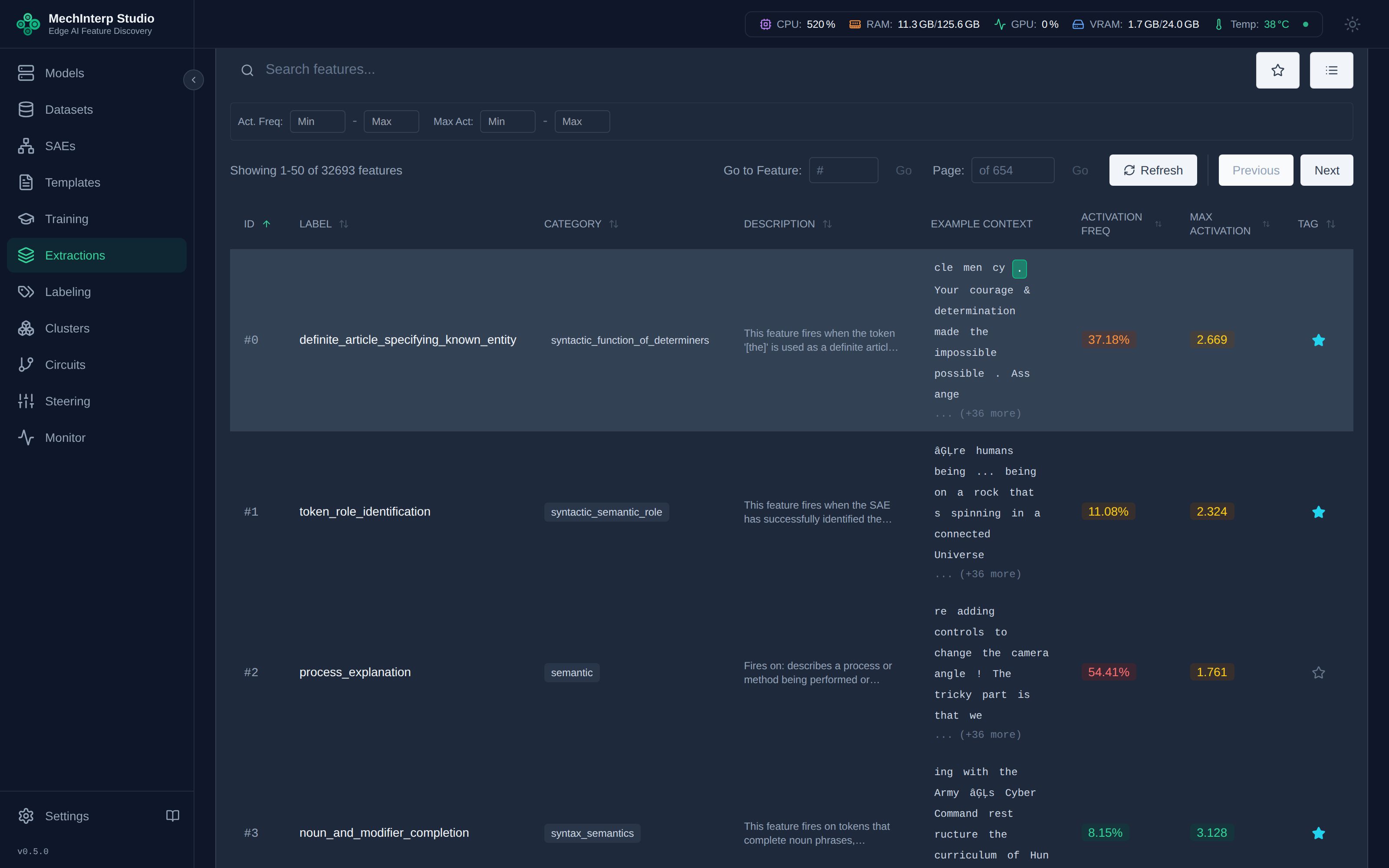
Aqua is permanent. It signals that a human-quality interpretation has been applied. Bulk auto-labeling jobs will automatically skip aqua-starred features, so a subsequent bulk job won't overwrite your carefully enhanced labels.
Completed Label
When synthesis completes, the Feature Detail modal auto-populates the Edit form with the new name, category, description, and notes. Review them, make any edits, and click Save.
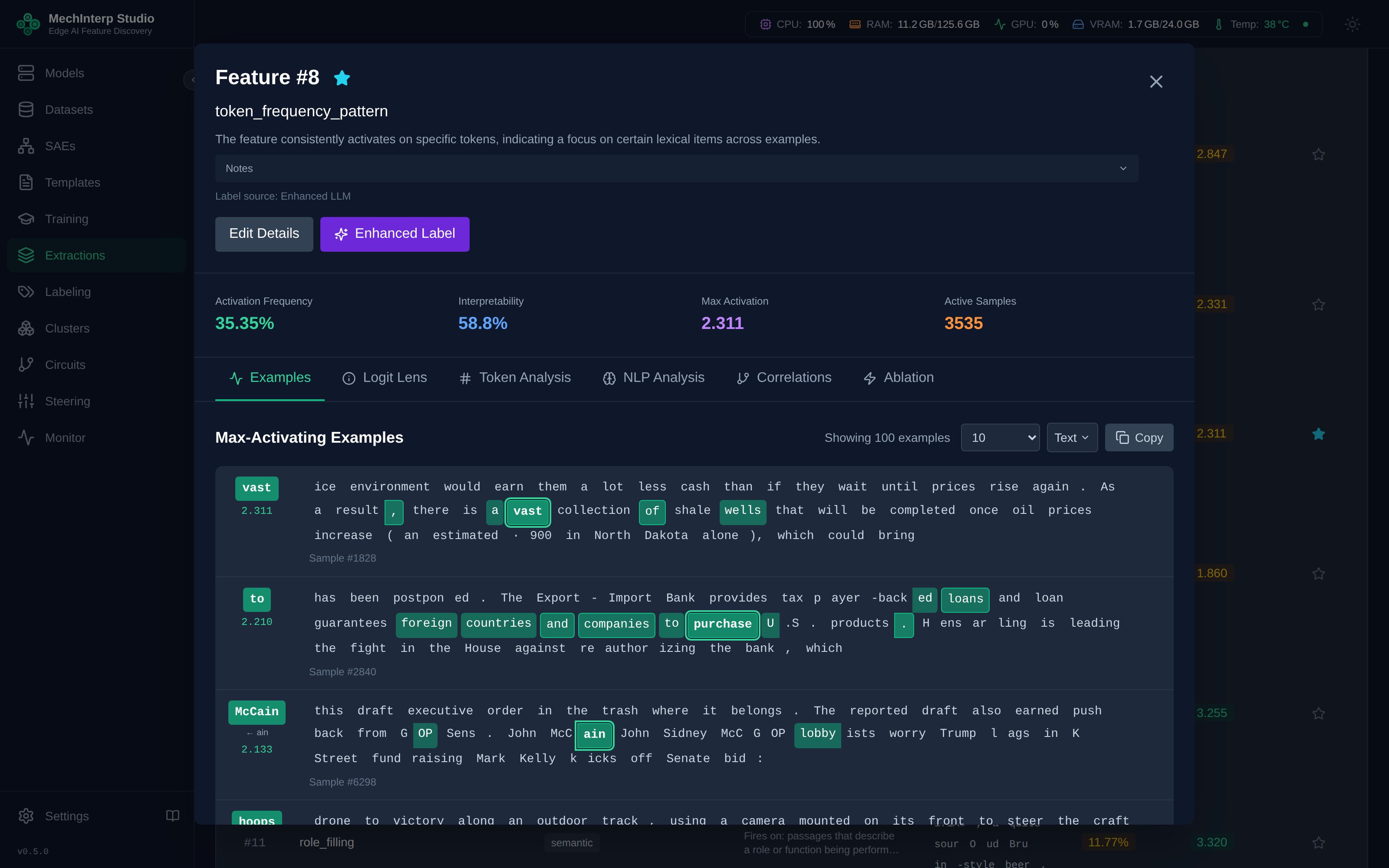
The Notes section renders as markdown:
- The synthesis reasoning paragraph at the top
- A
| Activation | Token | Observation |table of all per-example summaries
This gives you a full audit trail of how the label was derived.
Configuration
Configure enhanced labeling in Settings → Labeling → Enhanced Labeling:
The Method dropdown lets you switch between OpenAI and any local OpenAI-compatible endpoint:
After clicking Fetch Models, a scrollable dropdown lists all models available in your account:
| Setting | Description |
|---|---|
| Method | OpenAI — calls api.openai.com with your stored API key. OpenAI-Compatible — calls any endpoint you've saved in the Endpoints tab (miLLM, Ollama, etc.) |
| OpenAI Model | The model to use (e.g. gpt-4o-mini, gpt-5.5). Click Fetch Models to populate from your account. |
| Max Parallel Workers | How many Pass-1 examples run concurrently. Default 8. Reduce if your inference server returns errors. |
- gpt-4o-mini: Fast, cheap, good quality. Best default for bulk enhanced labeling sessions.
- gpt-4o: Higher quality, 5× more expensive.
- gpt-5.5: Best quality for genuinely ambiguous features. Uses more tokens (reasoning models).
- Local models (miLLM/Ollama): Free, slower, quality varies. Use
OpenAI-Compatiblemethod with your miLLM endpoint.
Models like gpt-5.5 or o3-mini internally "think" before responding. miStudio automatically allocates a larger token budget (16,000 tokens for synthesis) for these models so the reasoning trace doesn't crowd out the actual answer.
API Key Setup
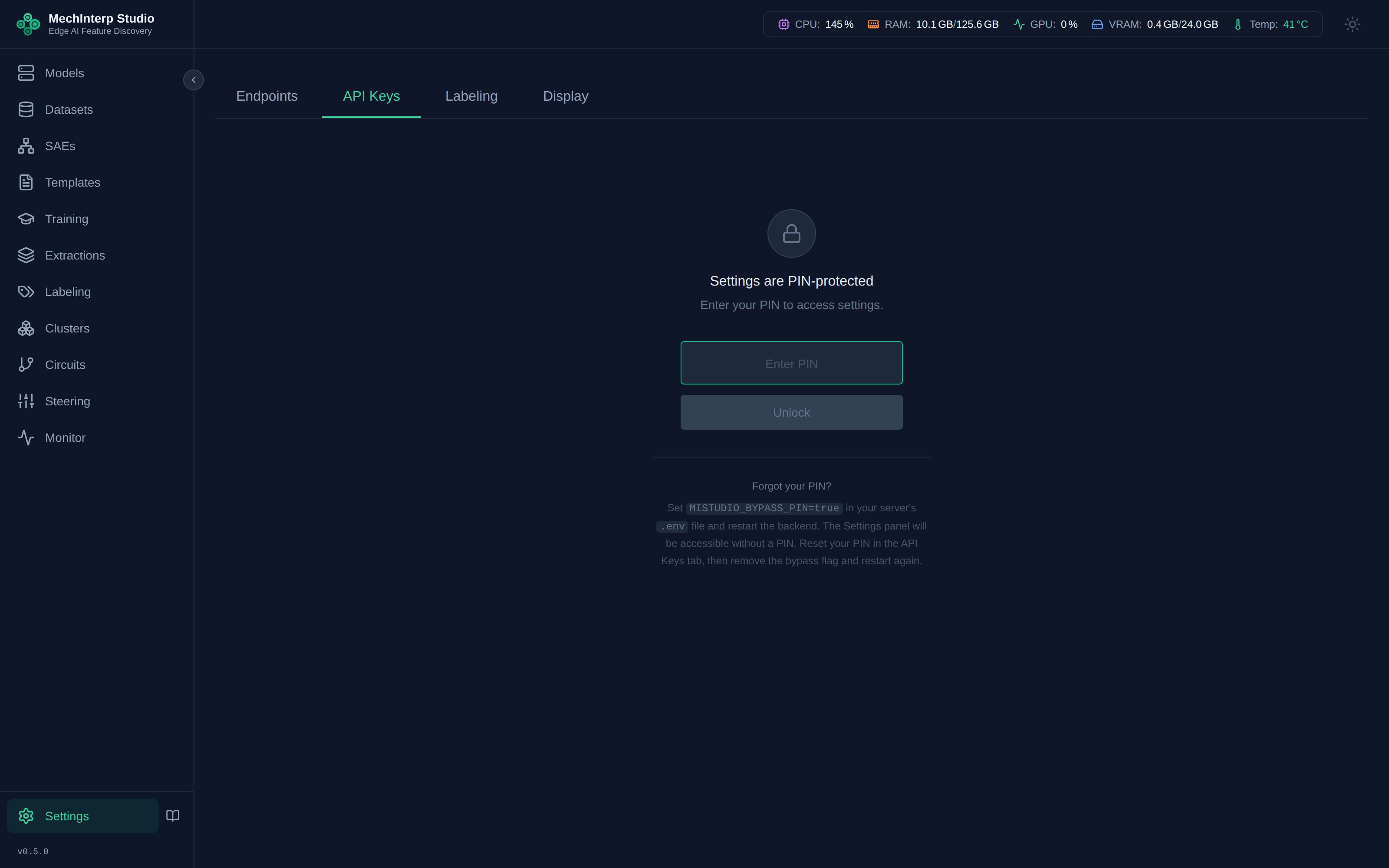
The OpenAI method requires your OpenAI API key. Set it once in Settings → API Keys:
- Navigate to Settings → API Keys tab
- Click Edit next to OpenAI API Key
- Paste your
sk-proj-...key and click Save
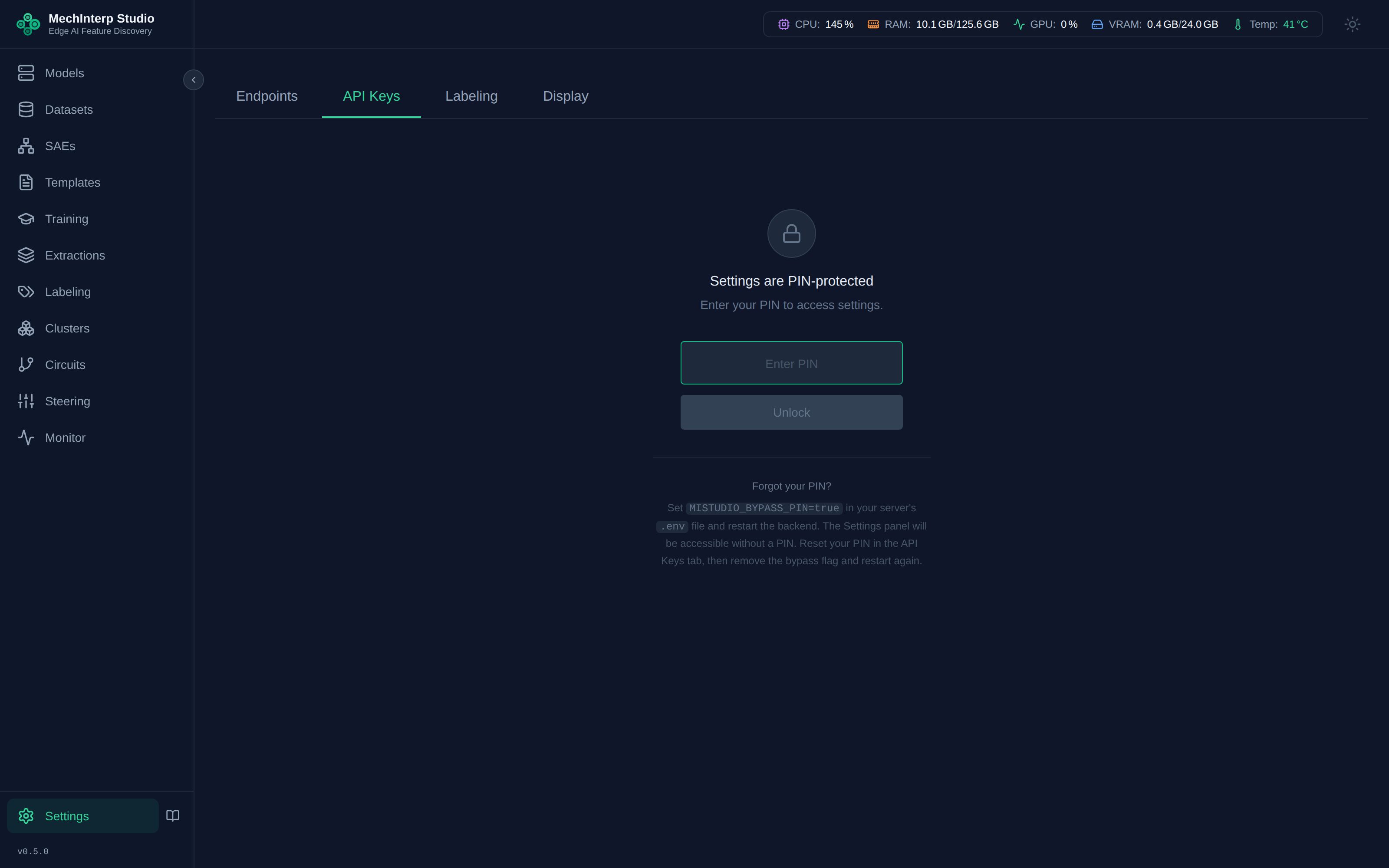
The key is stored encrypted at rest (AES-256-GCM). After saving it is only shown in masked form (sk-...XXXX) — never in full:
After saving, the Labeling tab will show ✓ "134 model(s) available from OpenAI" once you click Fetch Models.
Enhanced vs. Bulk Labeling
| Bulk Auto-Labeling | Enhanced Labeling | |
|---|---|---|
| Trigger | Labeling panel → Start Labeling job | Feature Detail modal → ✨ button |
| Scope | Hundreds to thousands of features | One feature at a time |
| LLM Passes | 1 (single call per feature) | 2 (per-example summaries → synthesis) |
| Speed | Fast (1–3 sec per feature) | Slower (20–90 sec per feature) |
| Output | Name + category | Name + category + description + notes (with full reasoning) |
| Best for | Initial survey of all features | Deep analysis of interesting features |