Model Management
The Models panel manages the transformer models whose internals you'll be studying — downloading them from HuggingFace, quantizing them to fit your GPU, and discovering their layer structure.
That content now lives on its own page: Dataset Management.
Model Ingestion
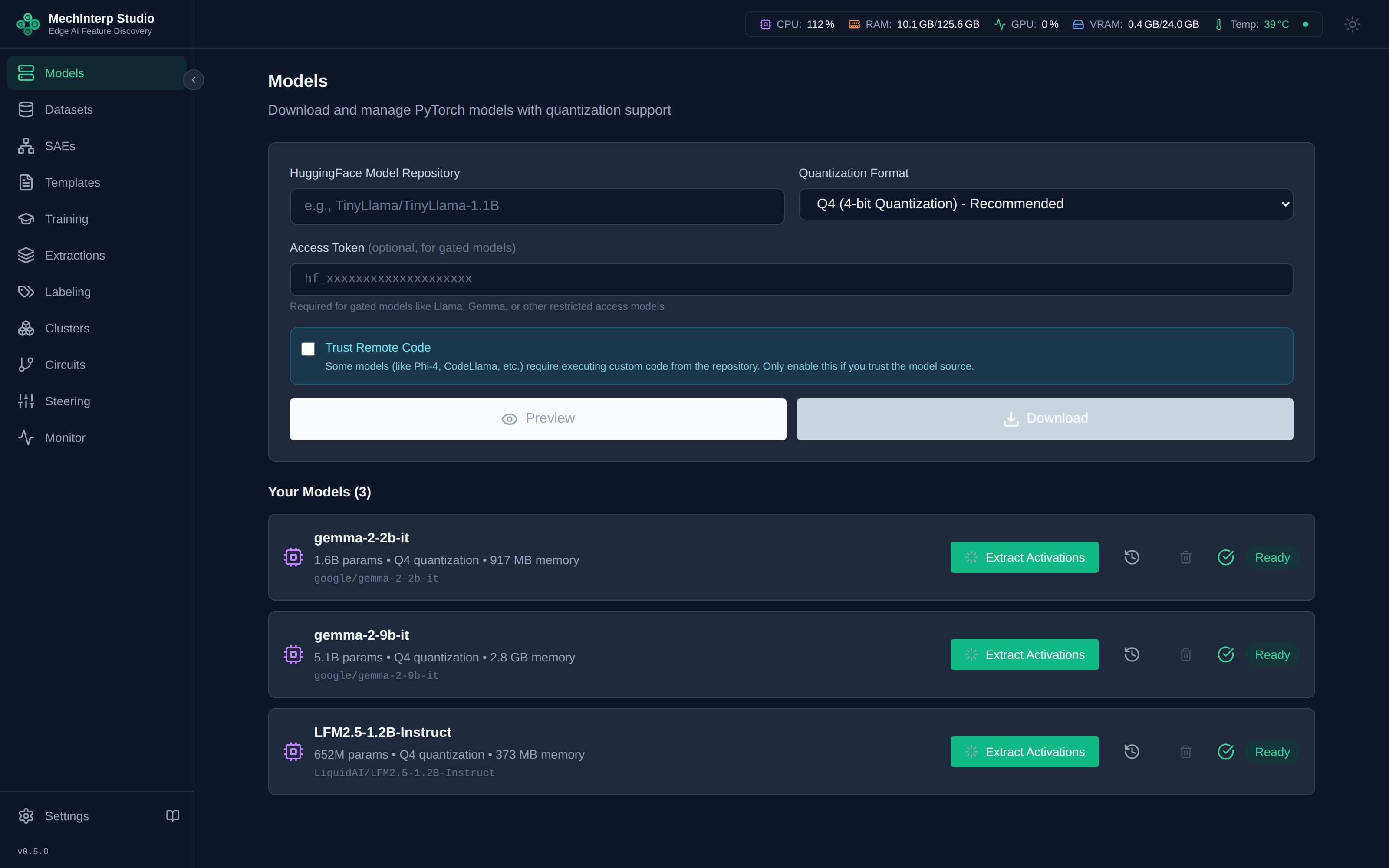
When you enter a HuggingFace ID (e.g., google/gemma-2-2b), miStudio:
- Downloads the model weights to local cache
- Runs Dynamic Layer Discovery to map every layer and hook point
- Displays the architecture in the model detail view
Use the Preview button to inspect a model's metadata before downloading:
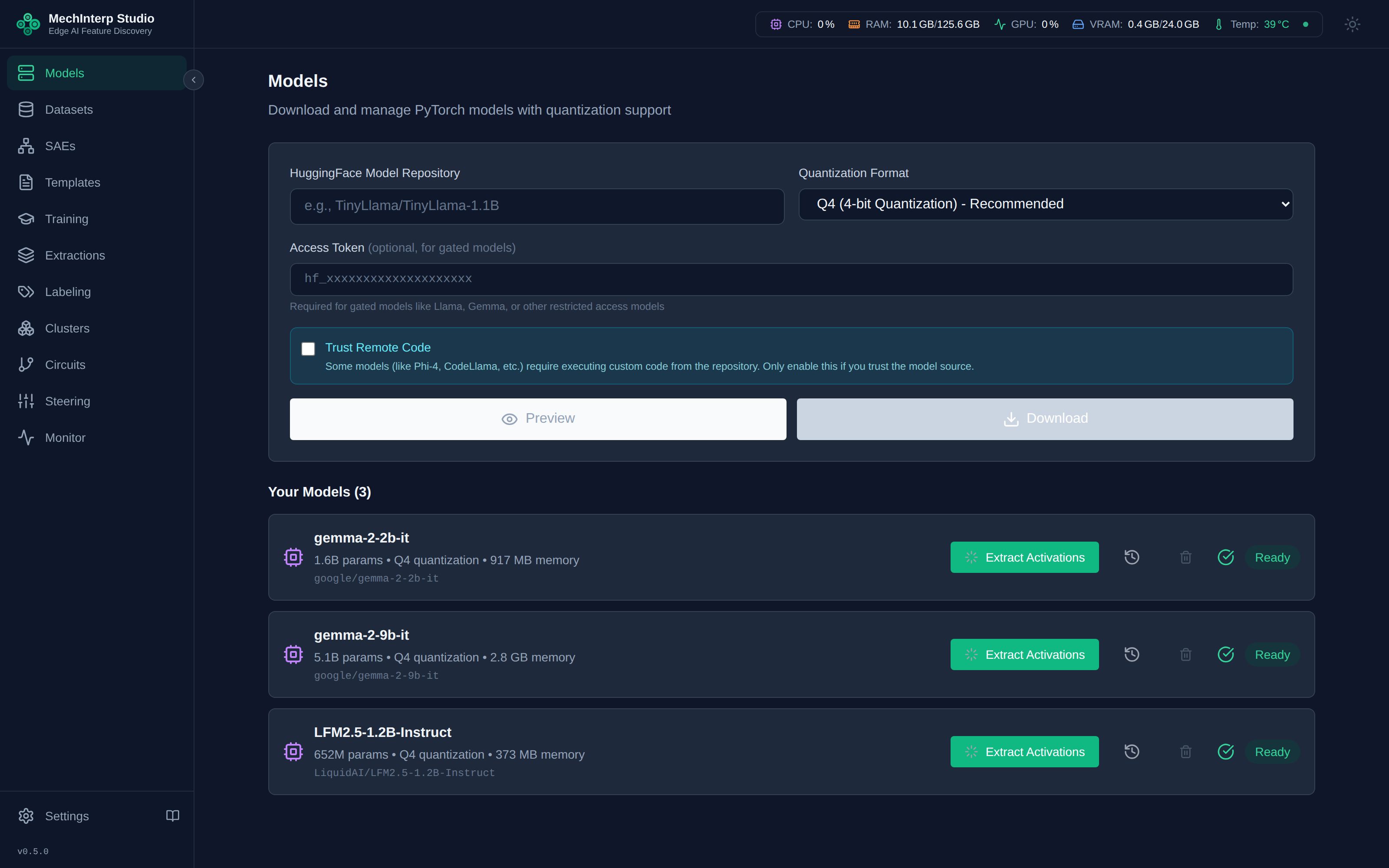
Downloads stream progress to the model card in real time and can be cancelled mid-flight — the running background task is revoked, not just hidden. Gated or private repos work once you save a HuggingFace token in Settings → API Keys.
miStudio does not maintain an architecture whitelist. Layer discovery introspects the loaded model dynamically, so new or unusual architectures (including hybrid models like LFM2) work without code changes. For models that ship custom code, enable the trust_remote_code checkbox in the download form.
Quantization
Quantization reduces VRAM usage at the cost of precision:
| Mode | Bits | VRAM Savings | Quality Impact | Best For |
|---|---|---|---|---|
| FP32 | 32 | None | None | Full precision (default); highest fidelity, largest footprint |
| FP16 | 16 | ~50% vs FP32 | None | Maximum precision SAE training that fits in VRAM |
| Q8 (INT8) | 8 | ~50% vs FP16 | Minimal | Good balance of speed and accuracy |
| Q4 (NF4) | 4 | ~75% vs FP16 | Moderate | Running large models on consumer GPUs |
| Q2 | 2 | ~87% vs FP16 | Significant | Maximum compression, research only |
For high-precision SAE training, use FP32 or FP16 if VRAM allows. Quantized models add noise to activations, which propagates into the SAE's learned features. The SAE itself is always trained in full precision — only the base model is quantized.
To change quantization after the fact, use Redownload on the model card — it re-fetches or re-quantizes the model with the new setting rather than requiring a delete-and-recreate.
Architecture Viewer
Every downloaded model exposes its discovered structure — layer count, hidden dimensions, attention/MLP composition — via the model detail view. This is the same structural map the extraction and steering systems use internally, so what you see is exactly what a probe can hook.
Understanding Hook Points
When configuring extraction or training, you must choose where to place probes inside the model. Each location reveals different aspects of the model's computation:
| Hook Type | What It Captures | When to Use |
|---|---|---|
Residual Stream (residual) | The "main highway" — cumulative information from all previous layers | Default choice. Best for general feature discovery. |
MLP Layer (mlp) | Factual "lookup tables" — world knowledge, entity associations | When investigating specific facts or knowledge storage |
Attention Layer (attention) | Relational reasoning — how tokens attend to each other | When investigating grammar, coreference, or syntactic patterns |
You can train SAEs on multiple layers and multiple hook types simultaneously. For example, selecting layers [6, 12] with hooks [residual, mlp] creates 4 separate SAEs in one training job — one for each layer×hook combination.
Deleting Models
Deleting a model removes its weights from disk. If a training job references the model, the delete is refused (HTTP 409) — delete or reassign the dependent trainings first. This protects you from orphaning SAEs whose base model is gone.