Navigating the Dashboard
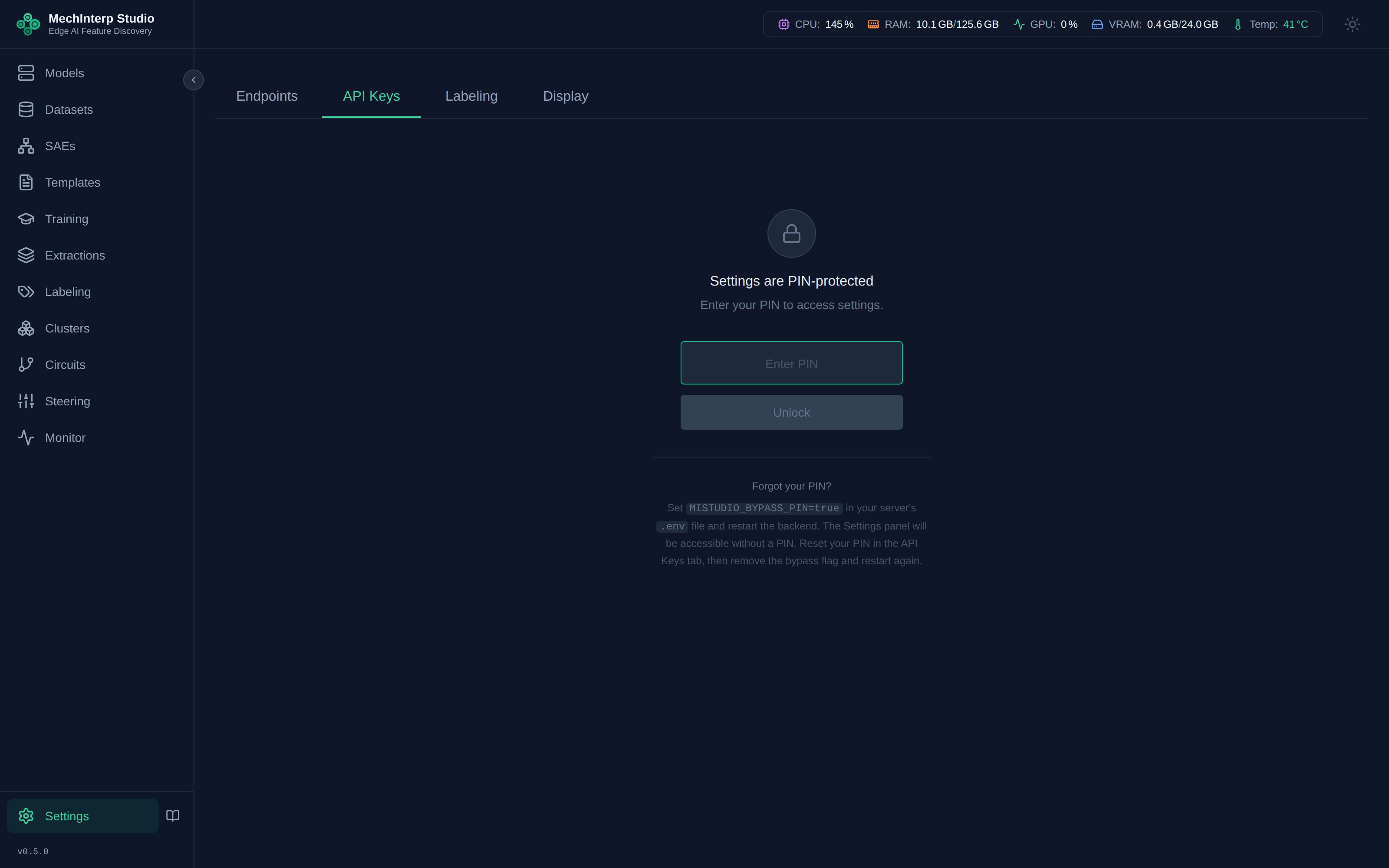
The interface uses a collapsible sidebar with grouped navigation sections. The sidebar can collapse to icon-only mode for maximum content area.
Panel Overview
| Section | Panel | Purpose |
|---|---|---|
| Data | Datasets | Download from HuggingFace, upload local files, tokenize |
| Data | Models | Download, quantize, inspect architecture |
| Training | Training | Configure and run SAE training jobs |
| Training | Training Templates | Save/load/share training configurations |
| Analysis | Extractions | Run feature extraction from trained or external SAEs |
| Analysis | Extraction Templates | Save/load extraction configurations |
| Analysis | Labeling | Manage auto-labeling jobs for feature interpretation |
| Analysis | Labeling Templates | Customize LLM prompts for labeling |
| Analysis | SAEs | Browse and download external SAEs from HuggingFace |
| Steering | Steering | Feature intervention matrix testing |
| Steering | Prompt Templates | Manage reusable steering prompts |
| System | Settings | API keys, endpoints, display preferences |
| System | Monitor | Real-time GPU, CPU, memory, disk metrics |
Real-Time System Monitoring
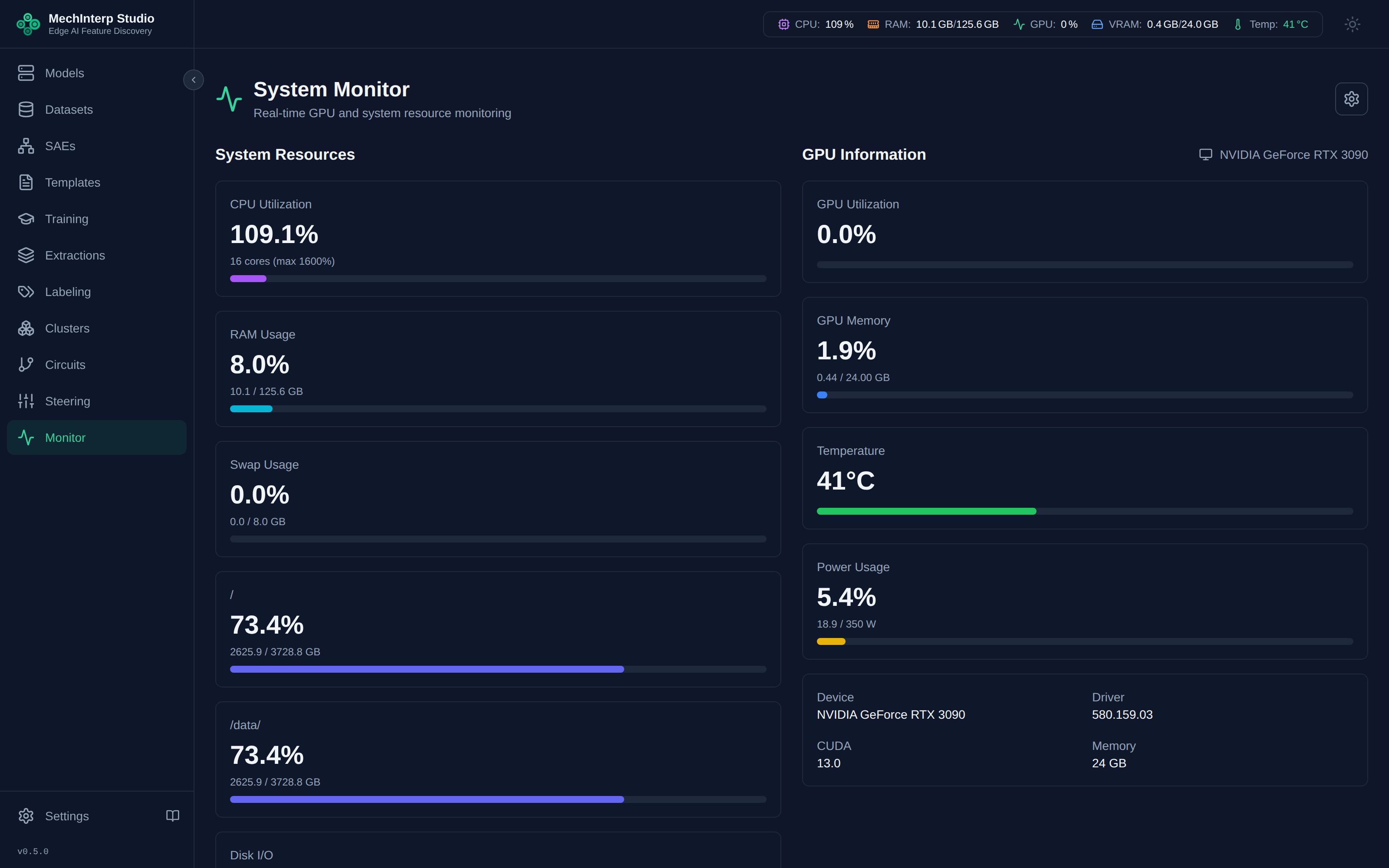
The Monitor panel provides live WebSocket-driven metrics:
- GPU Utilization & Temperature: Watch for thermal throttling (usually ~85°C). If hit, clock speeds drop and training times multiply.
- VRAM Pressure: If VRAM is >90% before starting a job, unload unused models or use more aggressive quantization.
- Disk I/O: During activation extraction, miStudio writes large tensor files. High disk I/O with low GPU utilization means your storage is the bottleneck.
Interpreting Metrics
- 100% GPU Utilization = good (GPU isn't waiting for data)
- High Power Draw = high heat. Laptops should be plugged in with high-wattage supply.
- Network I/O spikes indicate HuggingFace downloads or WebSocket activity.
Application Settings
The Settings panel provides persistent configuration:
| Tab | What It Controls |
|---|---|
| Endpoints | OpenAI-compatible endpoint URL + model for all labeling. Fetch Models button queries the endpoint and populates a dropdown. Saved endpoint bookmarks for switching. |
| API Keys | Encrypted storage (AES-256-GCM) for OpenAI API key and HuggingFace token. Keys are never returned in full after saving. |
| Labeling | Default batch size, max examples per feature. Enhanced Labeling section: choose between OpenAI API or local OpenAI-compatible endpoint, select the model (with Fetch Models button), set max parallel workers. |
| Display | Theme and UI customization |
Encrypted Settings
API keys are stored with AES-256-GCM encryption in the database — never in plain text or environment variables. Set your OpenAI key once here and all labeling jobs (bulk and enhanced) use it automatically.